---
title: Smart Probe Infrared (IR) Calibration Test Process
description: Navitas Safety Help Centre
---
[Skip to content](https://info.navitassafety.com/en/helpcentre/smart-probe-infrared-ir-calibration-test-process#main-content)
English
Show submenu for translations
- Home
- Products
- Pricing
- Blog
- Company
Open main navigation
Close main navigation
- Home
- Products
- Pricing
- Blog
- Company
- English
Show submenu for translations
- Contact us
Contact us
How can we help you?
- There are no suggestions because the search field is empty.
1. [Navitas Safety Help Centre](https://info.navitassafety.com/en/helpcentre?hsLang=en)
2. [Navitas Digital Food Safety](https://info.navitassafety.com/en/helpcentre/navitas-digital-food-safety?hsLang=en)
# Smart Probe Infrared (IR) Calibration Test Process
## Calibration Test of Infrared IR Sensor on Smart Probe
## What is an IR Calibration Test
The Smart Probe IR sensor is calibrated during the manufacturing process with a tolerance of 0.5 degrees. It is recommended that calibration checks of any temperature monitoring devices are carried out monthly to ensure they are still providing accurate readings. If you believe the readings you are seeing from your Smart Probe IR sensor are incorrect, first consult the following article on best practices:
[https://info.navitassafety.com/en/helpcentre/taking-infrared-ir-readings-with-your-smart-probe-best-practices](https://info.navitassafety.com/en/helpcentre/taking-infrared-ir-readings-with-your-smart-probe-best-practices?hsLang=en)
## How to Carry out a Calibration Test
First, you will require a second calibrated IR temperature sensor. This can either be another Navitas Smart Probe, or a third party device. This is known as a reference device.
Using the above best practice guide, carry out a side by side reading of the same item
ensuring the same distance and angle.
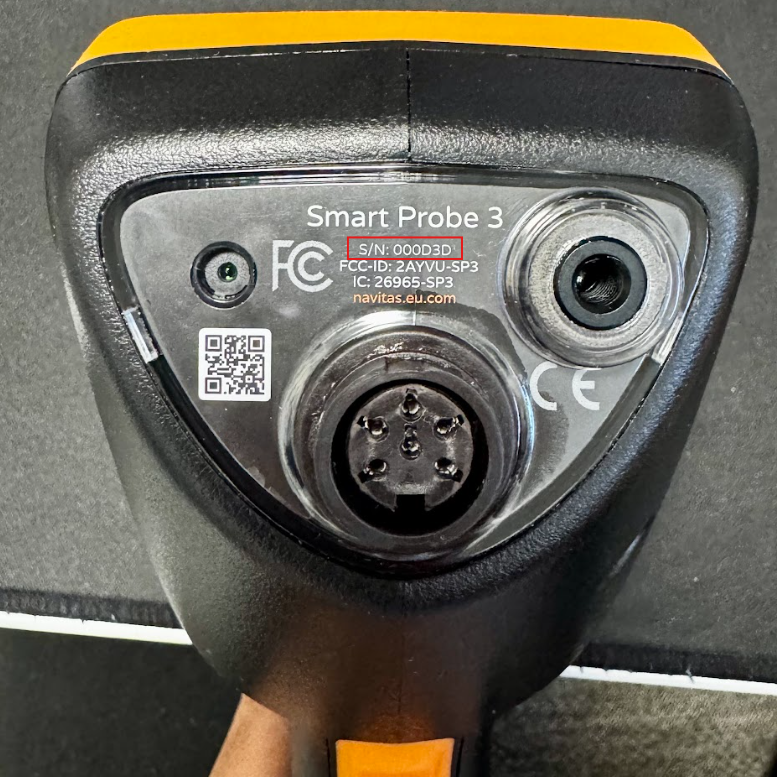
Note down the Serial number of the Probe which you are testing which can be found here:
Write down the reading from the Smart Probe IR that is being calibrated
Write down the reading from the reference devices IR sensor
Calculate if this variance is within 0.5 degrees.
If the variance is within 0.5 degrees select the 'Pass' option on the 'Result' field.
If the variance is not within 0.5 degrees select the 'Fail' option on the 'Result' field.
## Where to log your Calibration Test Results
We have built a form which can be completed to track the results of your Calibration Tests.
Please login to the Digital Food Safety platform as a Site Manager and go to **Forms Storage \> Start form** or click here when logged in - [https://app.dfs.navitas.eu.com/forms-storage/templates](https://app.dfs.navitas.eu.com/forms-storage/templates)
Note: If the above Form is not available on your account, Please contact the support team via live chat, or you can email [supportteam@navitassafety.com](mailto:supportteam@navitassafety.com) asking for the IR Calibration Test Form to be added to your Site.
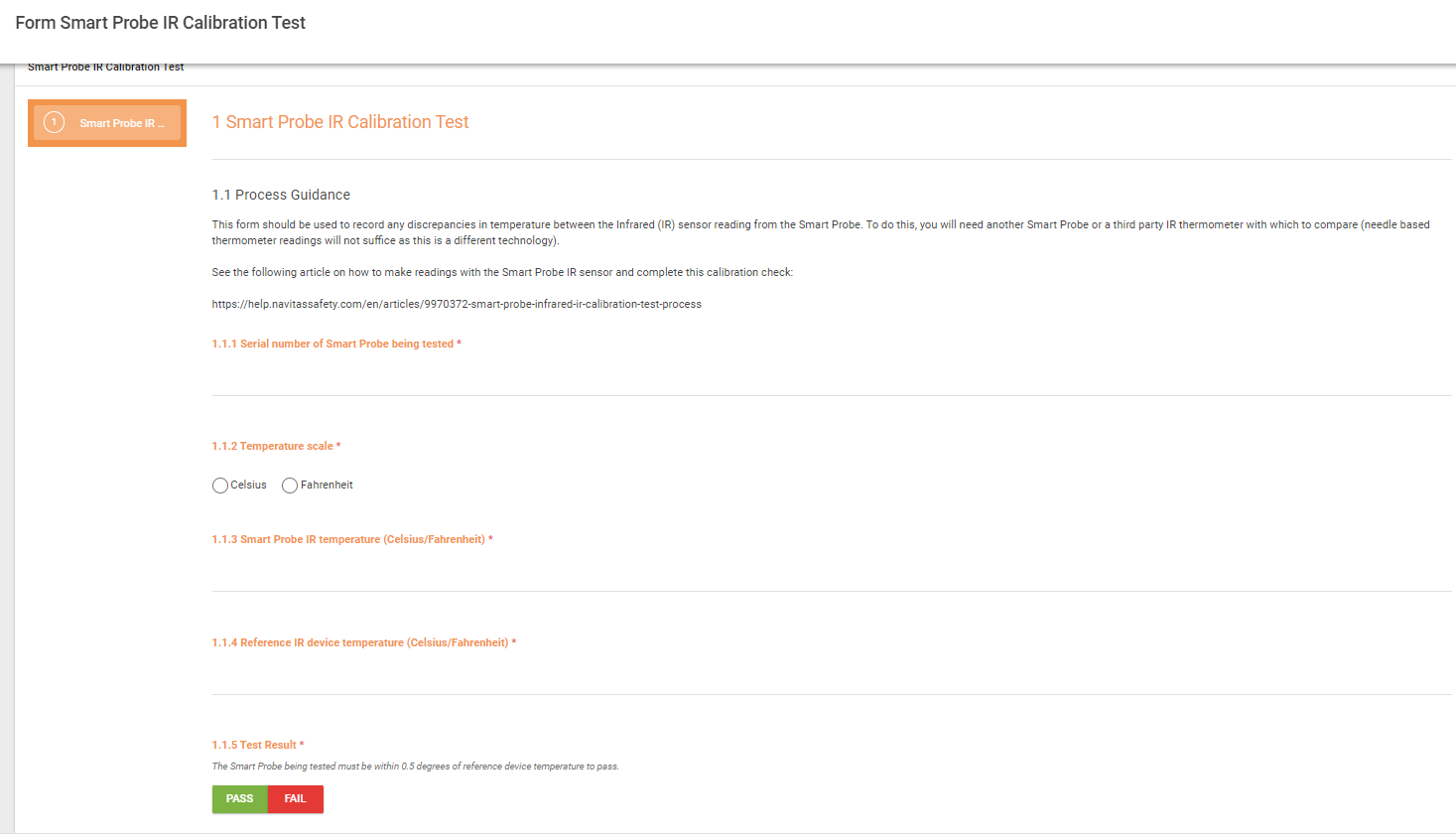
Start the form **Smart Probe IR Calibration Test** add in the Device Serial Number found on the exterior of the Smart Probe.
The Form requires five mandatory points of data entry which are:
1. Smart Probe Serial Number
2. Temperature Scale: (Celsius or Farenheit)
3. Temperature reading from device being tested
4. Temperature reading from reference device
5. Result (Pass or Fail)
Below you can see a screenshot of the Form.
Complete this form once per device that requires testing and remember to press 'Save' once all of the necessary information is entered.
If you are attempting to carry out calibration tests and are having difficulty, please contact the Support Team who will be happy to assist.
- [Navitas Digital Food Safety](https://info.navitassafety.com/en/helpcentre/navitas-digital-food-safety?hsLang=en#main-content)
- [DFS Hardware Smart Probe](https://info.navitassafety.com/en/helpcentre/navitas-digital-food-safety?hsLang=en#dfs-hardware-smart-probe)
- [DFS Training](https://info.navitassafety.com/en/helpcentre/navitas-digital-food-safety?hsLang=en#dfs-training)
- [DFS Hardware General & Setup](https://info.navitassafety.com/en/helpcentre/navitas-digital-food-safety?hsLang=en#dfs-hardware-general-setup)
- [DFS Hardware Hubs & Appliance Pods](https://info.navitassafety.com/en/helpcentre/navitas-digital-food-safety?hsLang=en#dfs-hardware-hubs-appliance-pods)
- [Navitas Compliance](https://info.navitassafety.com/en/helpcentre/navitas-compliance?hsLang=en)
- [Navitas Academy](https://info.navitassafety.com/en/helpcentre/navitas-academy?hsLang=en)
- [General](https://info.navitassafety.com/en/helpcentre/general?hsLang=en)
- [DFS New Account Setup Checklist](https://info.navitassafety.com/en/helpcentre/dfs-new-account-setup-checklist?hsLang=en)
- [New Releases](https://info.navitassafety.com/en/helpcentre/new-releases?hsLang=en)
- Home
- Products
- Pricing
- Blog
- Company
[](https://www.navitassafety.com/)
[mailto:email@email.com](mailto:email@email.com)
Copyright © 2026, Navitas Safety