---
title: Compliance Bulk Alignment Guide
description: Navitas Safety Help Centre
---
[Skip to content](https://info.navitassafety.com/en/helpcentre/compliance-bulk-alignment-guide#main-content)
English
Show submenu for translations
- Home
- Products
- Pricing
- Blog
- Company
Open main navigation
Close main navigation
- Home
- Products
- Pricing
- Blog
- Company
- English
Show submenu for translations
- Contact us
Contact us
How can we help you?
- There are no suggestions because the search field is empty.
1. [Navitas Safety Help Centre](https://info.navitassafety.com/en/helpcentre?hsLang=en)
2. [General](https://info.navitassafety.com/en/helpcentre/general?hsLang=en)
# Compliance Bulk Alignment Guide
- **Column A: Action**
- Use this column to specify the action you want to take. Examples: `ADD`, `DELETE`, `UPDATE`.
- **Column B & E: User's Email**
- **Column B (Current Email):** For existing users, enter their current email address here to identify their account for updates.
- **Column E (User Email):** Enter the user's new or primary email address here. This can be left blank if creating a new user.
- **Column C & D: User's Name**
- **Column C (First Name):** The user's first name.
- **Column D (Last Name):** The user's last name.
- **Column F: Role**
- This defines the user's permissions on the platform. **It is crucial to use the platform's internal role names, not internal job titles.**
- **Column G: Brand**
- This is the Brand the user will be linked to.
- **Column H: Site**
- Specify the store(s) the user needs to be aligned to. For users who require access to multiple sites, separate each site name with a comma e.g. Demo Site 1, Demo Site 2. The site name needs to reflect exactly what it is listed as on the platform, or the upload will fail.
- **Column I: Site Identifier**
- Specify site code if your organisation has them linked on the platform. For users who require access to multiple sites, separate each site code with a comma e.g. 1234, 5678, 9101
You do not have to fill in both columns H&I, once is sufficient.
- **Column J: Language**
- The Language preferred by user.
- **Column K: Timezone**
- The Timezone the user needs to be linked to.
- **Column L: As Auditor**
- If YES, the 'As Auditor' box will be checked for user.
- **Column M: Is Federated**
- This indicates if the user's account is linked to Single Sign-On (SSO).
## Using the Bulk Alignment Tool
1. Log into a HQ Manager account on the platform.
2. Navigate to Organisations \> Users
3. To download file to update, select **Download CSV** 
4. Complete edits on the CSV file using the above guidance and save.
5. Return to platform, and select the Upload CSV option
6. When the upload is complete, there will be a notification showing: 
7. This will show you if there are any errors on the file, and will give you the option to download an error file so you can review and amend. 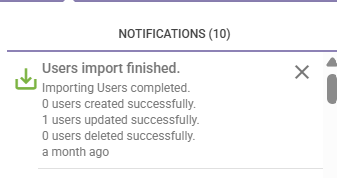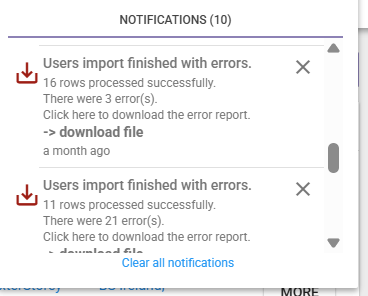
8. Contact Support team if Login As needs to be amended.
- [Navitas Digital Food Safety](https://info.navitassafety.com/en/helpcentre/navitas-digital-food-safety?hsLang=en#main-content)
- [DFS Hardware Smart Probe](https://info.navitassafety.com/en/helpcentre/navitas-digital-food-safety?hsLang=en#dfs-hardware-smart-probe)
- [DFS Training](https://info.navitassafety.com/en/helpcentre/navitas-digital-food-safety?hsLang=en#dfs-training)
- [DFS Hardware General & Setup](https://info.navitassafety.com/en/helpcentre/navitas-digital-food-safety?hsLang=en#dfs-hardware-general-setup)
- [DFS Hardware Hubs & Appliance Pods](https://info.navitassafety.com/en/helpcentre/navitas-digital-food-safety?hsLang=en#dfs-hardware-hubs-appliance-pods)
- [Navitas Compliance](https://info.navitassafety.com/en/helpcentre/navitas-compliance?hsLang=en)
- [Navitas Academy](https://info.navitassafety.com/en/helpcentre/navitas-academy?hsLang=en)
- [General](https://info.navitassafety.com/en/helpcentre/general?hsLang=en)
- [DFS New Account Setup Checklist](https://info.navitassafety.com/en/helpcentre/dfs-new-account-setup-checklist?hsLang=en)
- [New Releases](https://info.navitassafety.com/en/helpcentre/new-releases?hsLang=en)
- Home
- Products
- Pricing
- Blog
- Company
[](https://www.navitassafety.com/)
[mailto:email@email.com](mailto:email@email.com)
Copyright © 2026, Navitas Safety